
How to Install Apollo Group TV on Android Devices (Official 2026 Guide)
This guide covers how to install Apollo Group TV on Android, including Android TV Boxes, NVIDIA Shield, Chromecast with Google TV, Xiaomi Mi Box, and Android Smartphones.
Unlike Firestick, Android devices are often easier to set up. We will use the Downloader App method, which is the fastest way to get the latest Apollo Group TV APK.
Table of Contents
1. Prerequisites (Enable Unknown Sources)
Before installing third-party apps like Apollo Group TV, you must allow your Android device to install from "Unknown Sources."
- Go to Settings > Security (or Privacy).
- Find "Install Unknown Apps" or "Unknown Sources."
- Scroll down to find Downloader (or Chrome if using mobile).
- Toggle the switch to ON (Allowed).
Note: On newer Chromecast and NVIDIA Shield devices, enable "Developer Mode" by clicking the "Build Number" in the About section 7 times.
2. Install on Android TV Box & NVIDIA Shield
This is the best method for TV-based devices like NVIDIA Shield, Chromecast, and Android TV Boxes.
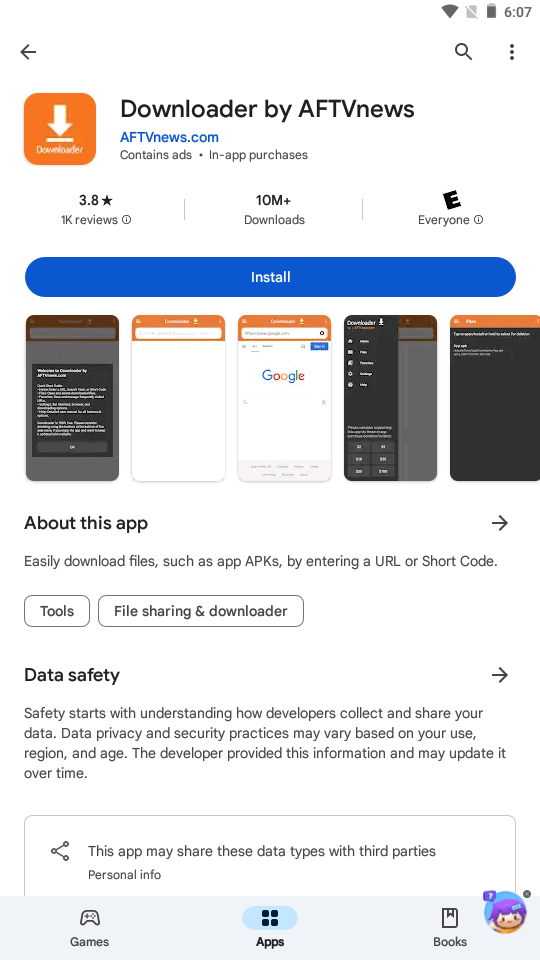
Step 1: Open Downloader App
Install the Downloader app from the Google Play Store. Open it to see the URL bar.
Step 2: Enter Apollo Downloader Code
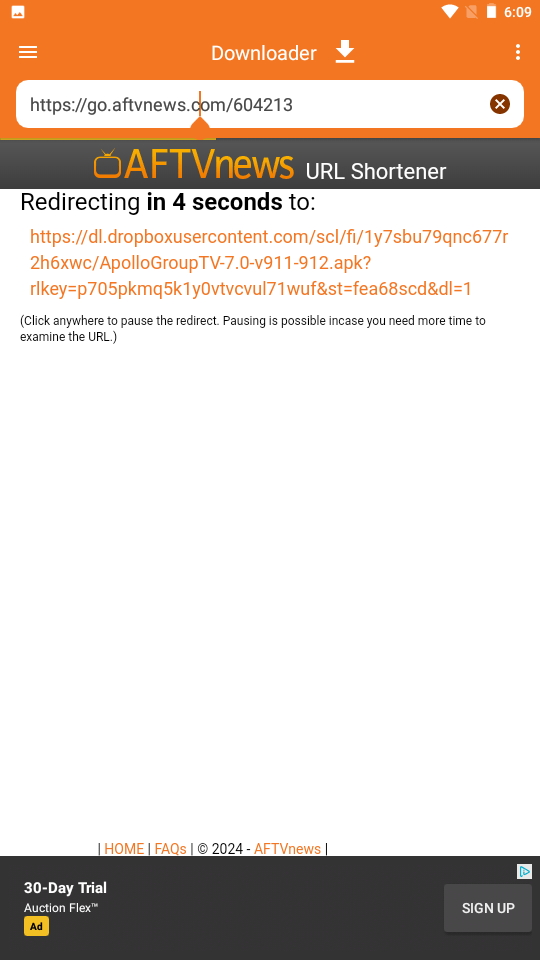
Click into the text box. Type the specific downloader code sent to your email (e.g., XXXX) or enter the direct URL.
Step 3: Download Apollo APK File
The app will connect to our server and download the Apollo Group TV APK file. Wait for the progress bar.
Step 4: Confirm Installation
Android will ask if you want to install this application. Click INSTALL.
Step 5: Open the App
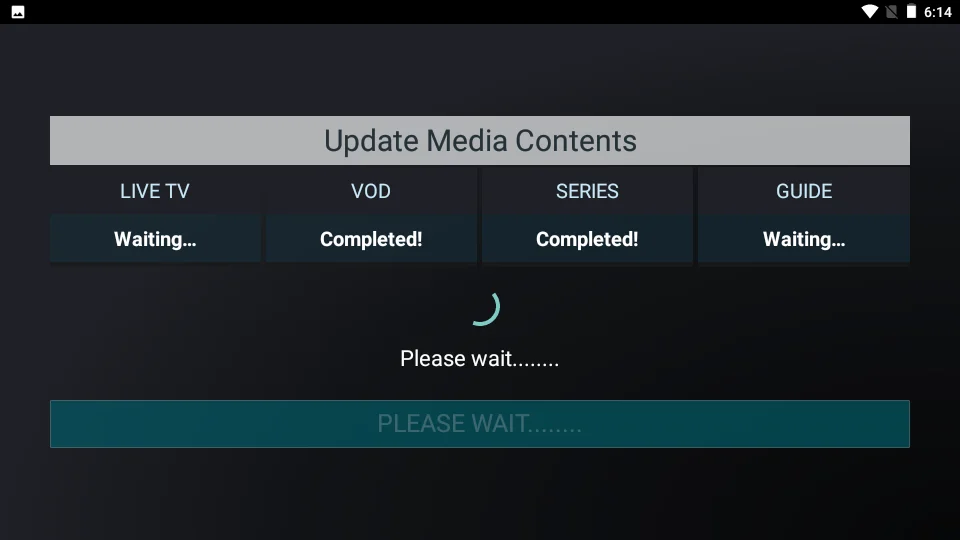
Once successful, click OPEN to launch Apollo Group TV, or DONE to delete the APK file.
3. Install on Android Phones (Alternative)
If you are using a Samsung Galaxy, Pixel, or other Android smartphone, you do not need the Downloader app.
- Open Google Chrome on your phone.
- Type the direct URL: myapollogroup.tv/apk
- The file will download to your "Downloads" folder.
- Tap the file and select Install.
4. Login & Activation
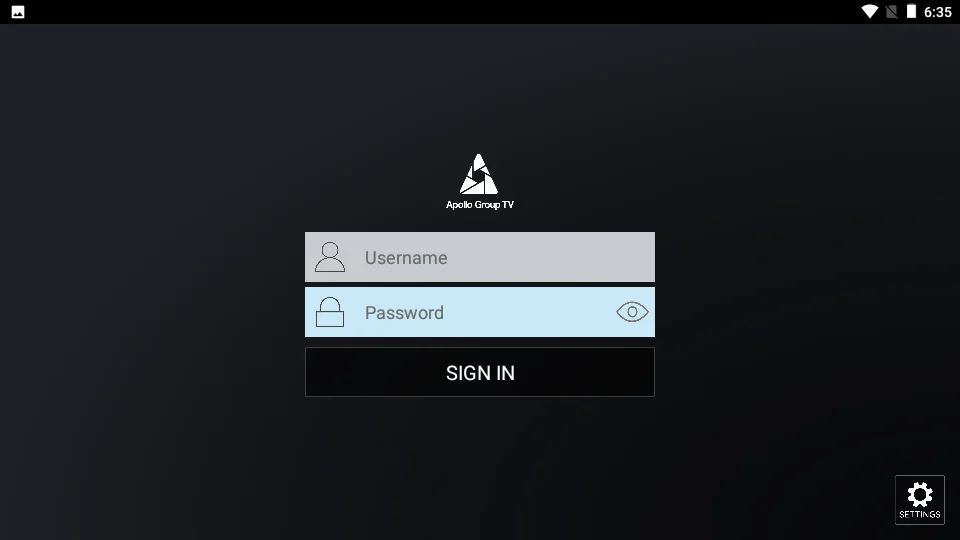
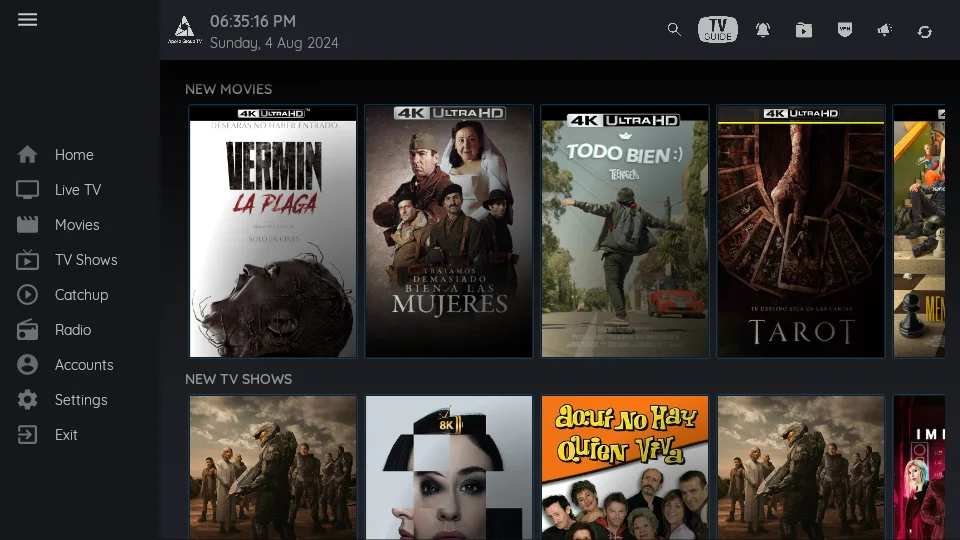
Enter the Username and Password that you received in your welcome email.
5. Troubleshooting & Buffering Fixes
If you experience issues installing Apollo Group TV on Android, try these solutions:
"App Not Installed" Error
This usually means you do not have enough storage space or Play Protect is blocking the install.
1. Delete unused apps to free up at least 300MB.
2. Go to Play Store > Profile > Play Protect > Settings > Turn OFF "Scan apps with Play Protect".
Buffering or Lag
Buffering is typically a network issue. We recommend a minimum speed of 25 Mbps. You can test your connection speed at Fast.com. If your speed is low, reboot your router.
6. Android Installation FAQs
Does this work on NVIDIA Shield?
Yes. The NVIDIA Shield is one of the best devices for Apollo Group TV due to its powerful processor.
How do I update the app on Android?
To update, simply open the Downloader app and enter the code XXXX again. It will download the new version and ask if you want to install an update over the existing one. Click Yes.